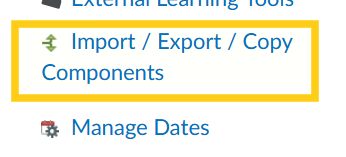
When you're in your Brightspace course, go to Manage Course > Course Admin in the top menu. Then select Import / Export / Copy Components in the Site Resources section.
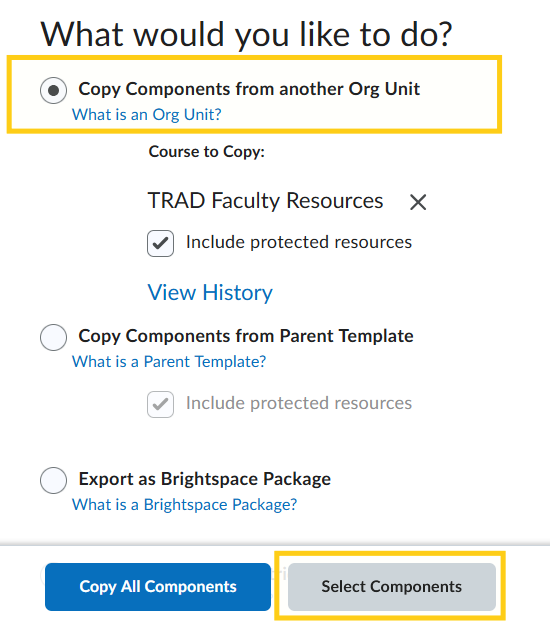
Then, on the Import screen, select Copy Components from another Org Unit and under Course to Copy: click the Search for Offering button. It will open a small window that lets you search for courses to import. We recommend using one of the courses you've taught in the past, if you've customized it for your classes. If you don't want to import from those, you can always use the TRAD Faculty Resources template.
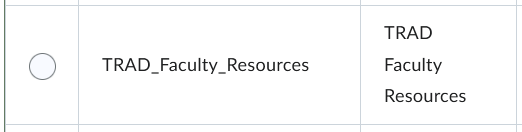
When you've found a course to import from, check the radio button next to the course, then select Add Course at the bottom.
Back on the Import screen, it should show the course you're importing from in the Copy Components from another Org Unit. At the bottom of the screen, select the Select Components button.
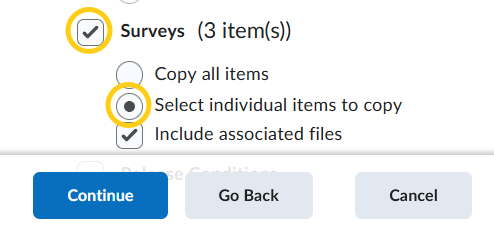
In the Choose Components to Copy screen, scroll near the bottom to find the Surveys section, check the box in that one, then select "Select individual items to copy" and click continue.
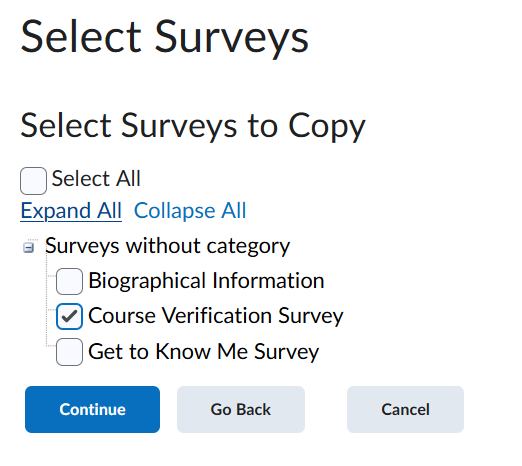
You will next see the Select Surveys to Copy screen. Checkmark the Course Verification Survey and click continue.
Was this article helpful?
That’s Great!
Thank you for your feedback
Sorry! We couldn't be helpful
Thank you for your feedback
Feedback sent
We appreciate your effort and will try to fix the article