We are transitioning to a new authentication/login process. However, during this period, there will be a slightly longer process to sign into MyOKWU.
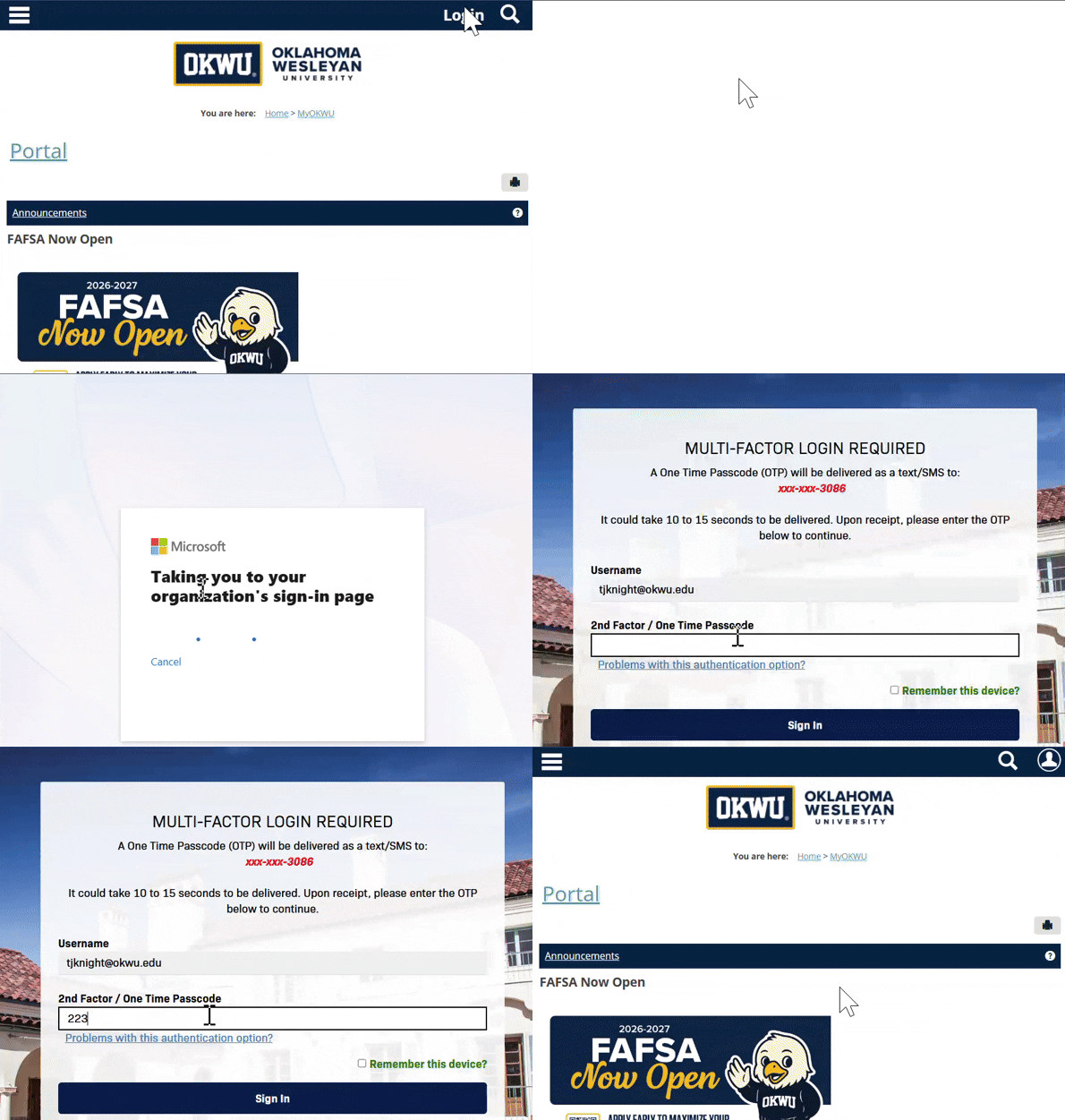
- Go to MyOKWU https://my.okwu.edu and click on the login button in the top right.
- Click on the Login button (not the admin login button, as seen below, that was used for testing purposes)
- You will see the Microsoft sign-in page. Put in your email address and then click Next.
- It will direct you to the familiar login page, featuring the Mansion in the background. Complete your login as normal with your password and one-time passcode.
- You will then see the Microsoft login page once again, asking if you'd like it to remember your login. Check the box if you'd like to prevent seeing that prompt again, and then select Yes or No.
- You will now be signed into MyOKWU and can complete your purpose for signing in.
Was this article helpful?
That’s Great!
Thank you for your feedback
Sorry! We couldn't be helpful
Thank you for your feedback
Feedback sent
We appreciate your effort and will try to fix the article