TABLE OF CONTENTS
- Access Contact Information Location:
- Updating Phone Numbers:
- Updating Email Addresses:
- Updating Mailing Addresses:
- IMPORTANT
Follow these steps to update your personal contact information, including phone numbers, email addresses, and mailing addresses, on my.okwu.edu:
Access Contact Information Location:
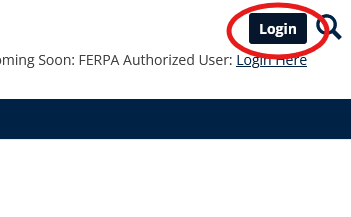
- Log In to my.okwu.edu
- Go to my.okwu.edu.
- Click the blue "Login" button in the top-right corner of the screen.
- Sign in as usual. You will be redirected to the home page.
- Access Your Profile Settings
- In the top-right corner of the screen, click the silhouette profile icon.
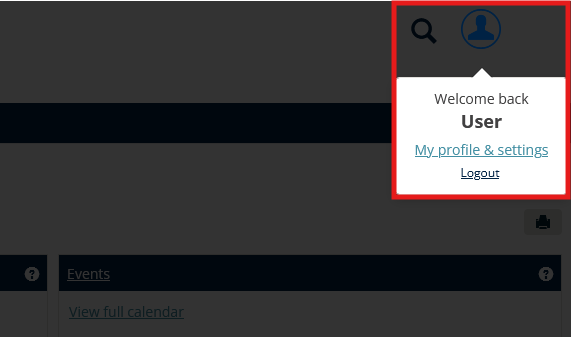
- From the dropdown menu, select "My Profile & Settings".
- In the top-right corner of the screen, click the silhouette profile icon.
- Navigate to Contact Information
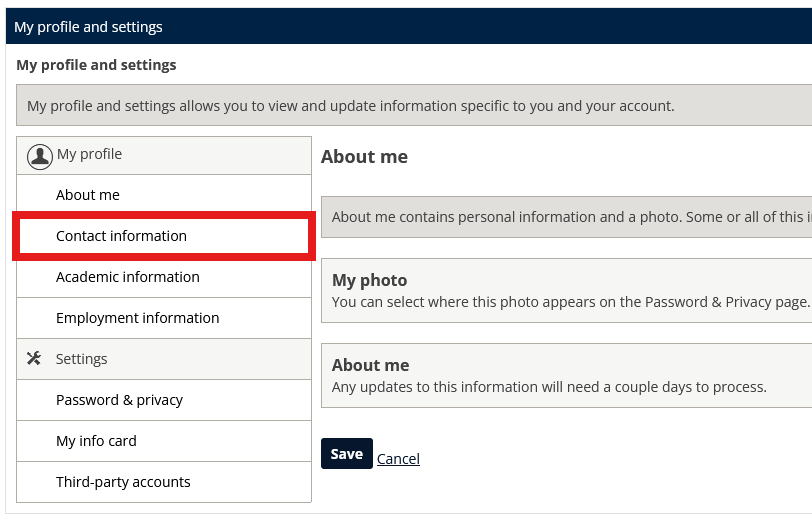
- On the new settings page, select "Contact Information" from the left-hand sidebar.
- Here, you can update your phone number, email address, and mailing address.
Updating Phone Numbers:
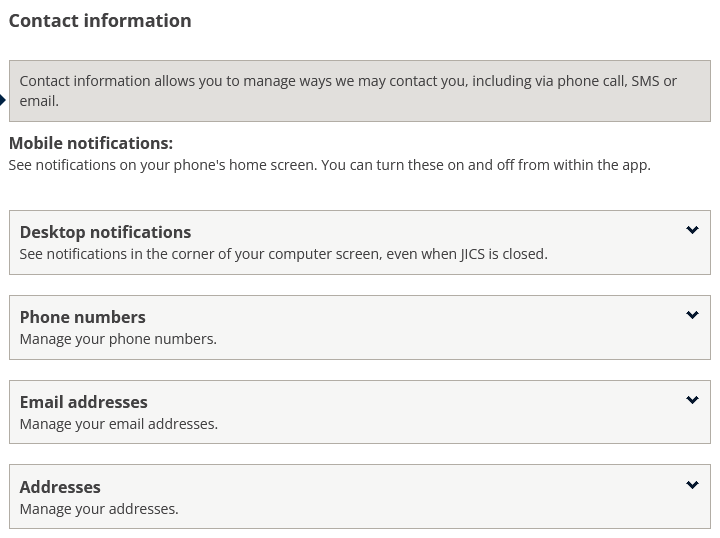
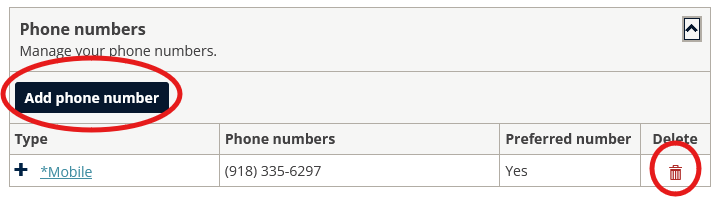
- Click the dropdown arrow next to "Phone Numbers".
- To delete outdated numbers, click the red trashcan icon next to the number.
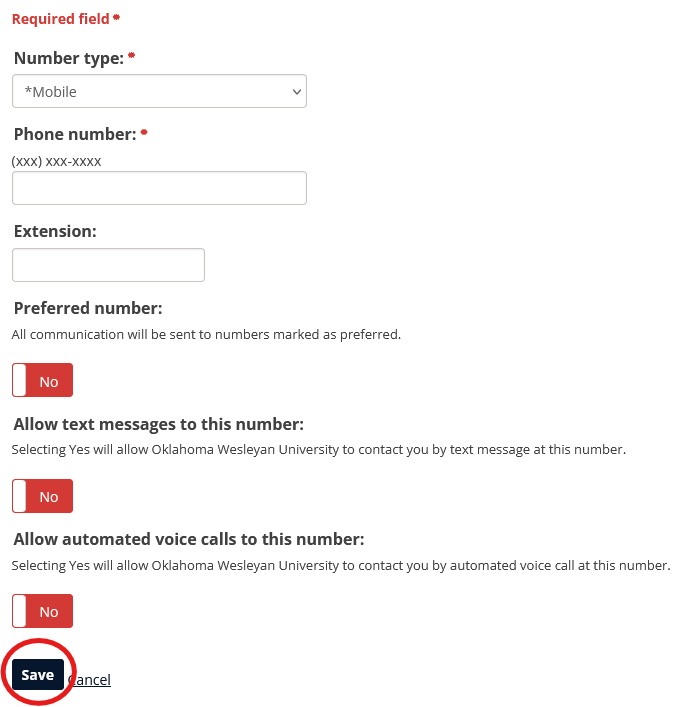
- To add a new number, click the "Add" button and enter the details.
- Specify if the number can receive texts or automated calls.
- Mark the number as your preferred number if applicable.
Updating Email Addresses:
- Follow all the instructions in the 'Access Contact Information Location' section above to access the Contact Information location in your MyOKWU account settings.
- Click the dropdown arrow next to "Email Addresses".
- To delete an email address, click the red trashcan icon.
- To add a new email address, click the "Add Email" button and enter the details.
- You can set a new email as your preferred email for communication.
- The PER1 designation is for personal email addresses (not from the OKWU domain).
Updating Mailing Addresses:
- Follow all the instructions in the 'Access Contact Information Location' section above to access the Contact Information location in your MyOKWU account settings.
- Click the dropdown arrow next to "Addresses".
- To change your address, click the "Current address" link and fill in the required fields.
- Ensure the address is accurate and up-to-date.
IMPORTANT
IF YOU SET BOTH "ALLOW TEXT MESSAGES/EMAILS TO THIS NUMBER/ADDRESS" TO "NO, " YOU WILL BE UNABLE TO RECEIVE TWO-FACTOR AUTHENTICATION CODES, WHICH ARE USED TO SIGN IN TO THE PORTAL & BRIGHTSPACE. PLEASE KEEP ONE OR BOTH SET TO "YES" TO ENSURE YOU CAN SIGN IN.
Be sure to save any changes you make before leaving the page. If you encounter any issues, contact support for assistance by emailing us at support@okwu.edu
Was this article helpful?
That’s Great!
Thank you for your feedback
Sorry! We couldn't be helpful
Thank you for your feedback
Feedback sent
We appreciate your effort and will try to fix the article